
Showing posts with label importing. Show all posts
Showing posts with label importing. Show all posts
Friday, 10 January 2020
Problems exporting to RefWorks from DISCOVER, EBSCOhost databases and Ovid journals - fixed
RefWorks have fixed the problems reported earlier this week. Please let us know if you have any further issues.

Tuesday, 28 March 2017
RefWorks import update
Friday, 24 March 2017
Problems importing references into RefWorks
We're currently having problems importing references into RefWorks from other databases. This problem seems to be affecting other universities too, and we have reported it to the supplier. We will let you know when we get a solution.
Thursday, 29 January 2015
Exporting large sets of references from EBSCO
You can now export large files
of records, (up to 25,000) from your DISCOVER results list using the Share menu. We wouldn't recommend doing this unless you really have to, for example for a systematic review. When you select to export
up to 25,000 records, you are emailed a link to a downloadable file which can
be imported into RefWorks.
To export up to 25,000 results:
Click the Share link on the Result List page.

Click the E-mail a link to download exported
results link.
Enter your e-mail address and select RIS Format from the options on the right.
Enter your e-mail address and select RIS Format from the options on the right.

EBSCO e-mails you a link to download an export file which you
can save for import into RefWorks. If you don't receive it, check your Junk folder. RefWorks can only handle imports of up to 2,500 references at a time - so you will have to open your .ris file (in Notepad, for example, and copy and paste chunks of references into smaller files, no more than 2,500 in each. In RefWorks, go to References
and Import. Check Import Filter/Data Source is RIS Format, and Database is RIS Format too. Choose the file you saved, and click Import.

Wait! It’s a lot slower than when you only import a few
references.
If you have any issues following this process, please let us know and we'll see if we can sort them out.
Friday, 23 January 2015
Importing references from Web of Science
We are having an issue with importing references to RefWorks from Web of Science. If you have already logged into RefWorks, it works fine. But if you haven't, it says that it has exported the references, but when you go into RefWorks they aren't there. We are investigating this with both suppliers, but for the time being please make sure you are already logged into RefWorks in another tab before trying to export Web of Science references.

Friday, 1 February 2013
What to do if direct export fails
We sometimes have trouble with the direct export feature which sends references from databases into RefWorks. If this happens, there are a few things you can try:
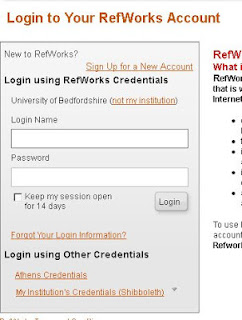

- Try logging out of your RefWorks account,. Go to the database and try the export again - you will have to log in to RefWorks again (use the My Institution's Credentials (Shibboleth) link).
- If that doesn't work, try finding the same article in DISCOVER, and exporting from there - you'll need to add the article to a Folder, and then click the folder icon on the top red bar, select your article and click Export.
- If all else fails, you can export the records as a file instead of a direct export - you can do this in either RIS or BibTex format. Save the file to your computer, log into RefWorks and choose References, then Import, choose whichever file format you used before in the Import Filter/Data Source drop-down menu, and choose your saved file to import.
Thursday, 8 December 2011
Importing citations from a word processed document into RefWorks
University of Wisconsion have posted a useful guide to importing a word processed bibliography into RefWorks.
Tuesday, 24 August 2010
New - easy importing from ISI Web of Knowledge
Web of Knowledge has just been upgraded, and there is now a button to import direct into RefWorks. Just select the articles you want, click
 and it should import your references with no further ado!
 and it should import your references with no further ado!
Thursday, 15 July 2010
Importing references from Emerald

The Direct Import to RefWorks function isn't working properly from Emerald at the moment, but you can still import references:
- instead of choosing Direct Export to RefWorks, choose Download file
- save your file
- in RefWorks, choose Import
- set Import Filter/Data Source to RIS format
- select the file you saved earlier
Thursday, 24 June 2010
Importing references from EJS (EBSCO Electronic Journals Service)
You can export references from EJS -
Click “export to citation manager” next to the article you want.
You will get a “save file” dialogue box – name the file and save as RIS Formatted File
Go into RefWorks, choose References, Import, set Import Filter/Data Source to RIS Format and Database to RIS Format, and select your file.
Unfortunately you only seem to be able to save 1 reference at a time, not a list.
Click “export to citation manager” next to the article you want.
You will get a “save file” dialogue box – name the file and save as RIS Formatted File
Go into RefWorks, choose References, Import, set Import Filter/Data Source to RIS Format and Database to RIS Format, and select your file.
Unfortunately you only seem to be able to save 1 reference at a time, not a list.
Tuesday, 18 May 2010
How do I import records from the library catalogue?
- When you find a catalogue record for the book you wish to add to RefWorks , click Save.
- Click on View Saved, then Export Saved.
- Select End-Note > RefWorks from the list of formats, then Save to local disk and Submit.
- Open the text file in Notepad (or similar program).
- Log in to RefWorks.
- Select References/Import from the toolbar.
- Select Innovative Interfaces Format as the data source and. Choose any database from the list – University of Bedfordshire isn’t there, but you must choose one.
- Copy and paste the contents of the text file into the Import Data from the following Text box.
- Click Import and your records should appear in the Last Imported References folder.
Subscribe to:
Posts (Atom)

 Posts
Posts

