Showing posts with label write n cite. Show all posts

Friday, 13 August 2021

Important Update for Write-N-Cite Users

RefWorks launches updates to Write-n-Cite (WnC) on August 17.

This new version,4.6.241 (or higher) for Windows / 4.6.212 (or higher) for Mac, will be available on the Tools page of RefWorks and legacy RefWorks and here.

Please note:

  • Write-N-Cite is for those using Word 2016 and below only
  • For users of Word 2016 and above, RefWorks Citation Manager (RCM) should be used
  • Current RCM users can disregard this notification

The new version of Write-N-Cite provides:

  • Additional security enhancements
  • Resolution of command window staying open during update to a new WnC version or uninstall of WnC, for both user-installed versions and IT versions of WnC, used to install WnC institution-wide.
  • Support of new reference types and fields being added to RefWorks in our upcoming monthly release

How Can Users Upgrade:

When users open Write-N-Cite they will be prompted to upgrade. Additionally users will receive an in-app message in RefWorks and in legacy RefWorks announcing this new version is available. Users can download the new version from the Tools page of RefWorks and legacy RefWorks and from here.

WNC aug2021

What If a User Doesn’t Upgrade:

Users who do not upgrade now will be able to continue using current versions, but won't have the new features described above. However, starting October 1, older versions will no longer work. We recommend updating to the latest version as soon as it will be available.

Wednesday, 16 June 2021

New version of Write-n-Cite coming 23rd June

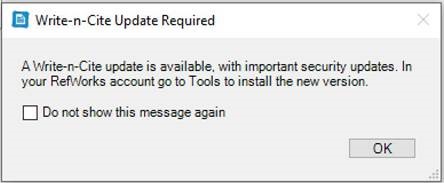
RefWorks will be launching a new Write-n-Cite (WnC) version on June 23, 2021. This new version, 4.6.201 (or higher), will be available on the Tools page of RefWorks (and legacy RefWorks). In addition, all new versions will be available for download here. This new version will provide improved security so RefWorks recommend upgrading once it is available. Please note however, previous versions will still work.

Once the new version of WnC is released, on June 23, if you open WnC you will see a message like this:


Monday, 17 May 2021

RefWorks no longer supporting older systems (eg Internet Explorer, Windows 7 & 8)

 RefWorks have informed us that they will no longer support some some systems:


Write-n-Cite (WnC): TLS 1.0 and 1.1 end of support – June 1, 2021

What do I need to know about TLS 1.0 and 1.1 end of support?

  • Starting June 1, 2021, WnC will support TLS 1.2 only. WnC will not work with TLS 1.0 or 1.1.
  • Support of TLS 1.2 depends on the operating system, browser, and Java / OpenJDK versions. Refer to the following articles to see check what versions support TLS 1.2:
  • Read more about TLS and the importance of using more recent versions here.

Word add-ons: Windows 7 and 8 end of support – July 1, 2021

What do I need to know about Windows 7 and 8 end of support?

  • RefWorks Word add-ons, RefWorks Citation Manager and Write-n-Cite, will not stop working with Windows 7 and 8 on July 2, 2021, however RefWorks will no longer fix any bugs specific to Windows 7 or 8 or test new features on Windows 7 or 8. Over time usability is expected to diminish.
  • RefWorks Word add-ons will continue to support Windows 8.1 and 10. For full add-on – operating system compatibility information refer to this link.

RefWorks Internet Explorer 11 (IE11) End of Support -  July 1, 2021

What do I need to know about Internet Explorer 11 end of support?

  • RefWorks will not stop working in IE11 on July 2, 2021, however RefWorks will no longer fix any bugs specific to IE11 or test new features on IE11. Over time usability is expected to diminish.
  • RefWorks Citation Manager and Write-n-Cite will still support IE11.
  • RefWorks will continue to support the following browsers: Microsoft Edge, Firefox, Safari, Google Chrome.

Friday, 6 March 2020

RefWorks downtime 21 March 2020

RefWorks have announced a period of downtime on Saturday March 21 9am - 1 pm while they upgrade the database.

The main version of RefWorks (new RefWorks) will be unavailable during this period. RefWorks Citation Manager and Write-n-Cite will also be unavailable.

Tuesday, 9 May 2017

Write-N-Cite version 4.4.1376 System Requirements

Write-N-Cite for Windows version 4.4.1376 System Requirements
  • Windows Operating System
  • Windows 8 or later 
  • 256 MB of RAM
  • 20 MB of available hard-disk space
  • Internet connectivity (for downloading of tool and periodic database synchronization)
Write-N-Cite for Windows works best with Word 2013 and 2016 (32 bit versions). This version will NOT work with Word 2007 or Win 7, both which are no longer supported by Microsoft. Word 2007 and/or Win 7 users should use our Quick Cite feature or our Google Docs Add-on. Write-N-Cite will not work with Office 365 users using cloud-based app.  Word must be installed locally.


Write-N-Cite version version 4.4.1237 for Mac:

  • Works with OS X 10.11 ( El Capitan), 10.10 (Yosemite), 10.9 (Mavericks), 10.6 (Snow Leopard), 10.7 (Lion) and 10.8 (Mountain Lion)
  • Word 2011 and  2008.
  • Mac OX 10.9 and 10.10 users must download Java 6 from Apple's support site replacing any previously installed versions: http://support.apple.com/kb/dl1572

Note:  Write-N-Cite for Mac does NOT work with Word 2016 at this time.

Tuesday, 1 November 2016

Write N Cite for different operating systems

It can be confusing installing Write N Cite on different operating systems so RefWorks have issued a summary:


The latest version of Write N Cite for Legacy RefWorks (this is the version we use) is version 4.4. This should be available to download from RefWorks and is compatible with all versions of MS Office from 2007 to 2013.

For Office 2016 on both Windows and Mac you would need to install the RefWorks Citation Manager. This works with both Legacy and new RefWorks.

The RefWorks Citation Manager is available from the Microsoft store.

To download it, from within Word, go to: Insert > Add-ins > Store and then search for RefWorks.

Select the RefWorks Citation Manager and add it by clicking the 'trust it' button.

You will then be requested to enter your RefWorks log in details before you can start using it.

Friday, 4 December 2015

Five steps to working with RefWorks

1. OPEN YOUR PERSONAL ACCOUNT

Follow the link to RefWorks. Login with your Student Number (or Novell ID) and password.
First time users only: you will be presented with a short form to complete. Don’t forget to include your University email address so you will receive notices about service upgrades.
Returners: Your personal library will open directly; you no longer need to double sign-in.

2. PERSONALISE YOUR VIEW 


Click on the Bibliography menu and select Output Style Manager.
Highlight ‘Harvard – UoB’ on the left list. Use the green arrow to add it to the Favorites list.

3. CREATING YOUR OWN LIBRARY


3.1 Create a new reference manually
Click on the New Reference icon, shown here .
Select ‘Harvard – UoB’ from the first menu. Choose the Ref Type and follow the onscreen prompts. Type authors’ names with the surname first and organisations’ acronyms in full.

3.2 Import references from DISCOVER
You can also import references from DISCOVER. (Your Academic Liaison Librarian may give you another handout with detailed instructions on how to import references.)
Do a quick search for ‘time management’ (or your choice of topic). Add at least 4 records to your folder. Navigate to the Folder View.
Use the Export icon to ‘Direct Export to RefWorks’.
Go back to your RefWorks window/tab to view your imported results.

3.3 Add books from the library catalogue
From the RefWorks Search menu, click Online Catalog or Database. Select ‘University of Bedfordshire’.
Use Advanced Search to look for a book title you know.
Tick some references and use the Import to Folder menu at the top of the screen to add these books to your personal RefWorks account.
Use the View menu to back to All References again. Look at one of the citations you moved. How can you tell which folder it is in?

3.4 Bookmark websites
There are two ways to do this with RefWorks: (i) using the bookmarklet RefGrab-It (download from Tools menu); (ii) creating manual references as follows
Click the New Reference icon (shown above). Make sure the top box has ‘Harvard – UoB’ and select ‘Web Page’ as the Ref Type.
Follow the onscreen prompts to complete the record.
To see all the references you have created, choose All References from the RefWorks
View menu.

4. MANAGE REFERENCES: DELETING REFERENCES & USING FOLDERS

Some people like to create folders for each unit or specific assignments; you can put references in more than one folder.
Starting in the All References view, click on the New Folder icon [right]. Give it a name.  Then select some references (using the tick boxes) and use this icon (at the top of the page) to move them into your new folder.
Now practise deleting unwanted references.
Select one reference (using the tick box).
Click the red cross (top of the list) to delete it.

5. INSERT CITATIONS & CREATE A REFERENCE LIST

There are two main ways to get references from RefWorks into your assignments.

5.1 Use ‘Create Bibliography’
Click the Create Bibliography icon; this dialogue window appears. Check the Output Style.
Choose the File Type you want (‘RTF’ works with most WP software).
In Step 4 you created named folders. You can select your required folder from the folder area on the right of the screen to limit which citations are listed.

5.2 Use Write-N-Cite (WNC) in Microsoft Word
The WNC plug-in links your RefWorks library to Word documents. WNC is very useful because it only lists references you have cited in-text – something the route above cannot do.
To install, go to Tools> Write-N-Cite. Follow the installation wizard’s prompts.
There are options for PC and Macs.
Open a Word document. Click on the RefWorks tab.
Click on log in and and then click on the drop down ‘Log in from my institution’ box and choose University of Bedfordshire
When the University log in box appears, log in using your usual username and password.
You may need to re-select your Output style. Click on the Style drop down menu and choose Other styles > My Favorites to access your preferred referencing styles
To add citations in the text, click on Insert Citation
To complete your reference list, choose Bibliography Options > Insert Bibliography

The Help link gives more advice on how to use RefWorks. If you need further help, please contact your Academic Liaison Librarian or call our helpdesks (01234 793189 or 01582 743488).

Monday, 19 January 2015

Refworks troubleshooting guide updated

We've updated our Refworks troubleshooting guide recently. If you're having any issues getting Refworks or Write-n-cite to work properly, then take a look. Let us know if you have a problem that isn't covered.


Thursday, 8 May 2014

Write-N-Cite / ProQuest for Word

RefWorks have recently released an upgraded version 4 of Write-n-Cite, called ProQuest for Word. There is guidance on this on the RefWorks help site.

After you have installed it, you need to login in with a code which you will find in RefWorks under Tools, Write-n-cite.


If you have any problems, please let us know.

Thursday, 1 August 2013

Translated Write-N-Cite User Guides

RefWorks have issued their Write-N-Cite Quick Start Guide in these languages:
 

Tuesday, 23 July 2013

Write-N-Cite for Mac users

There is an update to Write-N-Cite 4 (version 4.2. 1120)  for Mac users now available from the download page.  This upgrade benefits users with large accounts (>2500 references).  Users with fewer references are not required to upgrade.

Tuesday, 28 May 2013

Write-N-Cite - updated tools page

RefWorks have recently updated the Write-N-Cite Tools page to help provide more useful information and ensure that as many users as possible can install and run Write-N-Cite with minimal support. More information is available for download and additional links to updated help files have been included. To see these changes log into your RefWorks account, go to the Tools menu and select Write-N-Cite. On this page:
  1. Do you have questions about the latest version of Write-N-Cite? See our frequently asked questions.
  2. Having trouble installing the newest version of Write-N-Cite ? The installation guide might help, or you may need to check the Mac or Windows software requirements.
  3. How do I log into Write-N-Cite using my UoB login? UoB uses Shibboleth  to log in to RefWorks, so you MUST copy and use this code on the Write-N-Cite login screen: 


Friday, 15 February 2013

Write-N-Cite quick start guide

RefWorks have launched a new Write-N-Cite quick start guide to help you get started using Write-N-Cite.

The new and improved quick start guide is a valuable resource for new and current users, providing information on various aspects of Write-N-Cite, including: 
  • Launching and logging into Write-N-Cite 
  • Selecting output styles 
  • Inserting footnotes or citations 
  • Setting preferences, and more

Thursday, 14 February 2013

Write-N-Cite login options

If you've downloaded Write-N-Cite, before you begin using it you will be asked to log in to your RefWorks account with a login box like this:
RefWorks login box: group code, username, password OR you can login to Write n cite using your login code


If you created your account a long time ago and have not yet gone through the process of linking it to your University username and password, you may find the Group Code together with your usual RefWorks username and password works for you. Otherwise, you will need to find your Write-N-Cite code - login to your RefWorks account, click the 'Tools' button on the toolbar then choose 'Write-N-Cite'. You'll see a page like this:


Copy the text from the Write-N-Cite Login Code box and paste it into the Write-N-Cite login screen. Don't copy the text from the image above - your login code is unique to your account!

Thursday, 17 January 2013

New RefWorks tutorials on YouTube - Write-N-Cite 4

Need to learn the basics of the new RefWorks Write-N-Cite? Watch the new video, it will help you learn how to insert citations and create bibliographies. If you haven't installed Write-N-Cite on your computer, check out this one first.