
There is an update to
Write-N-Cite 4 (version 4.2. 1120) for Mac users now available from the
download page. This upgrade benefits users with large accounts (>2500
references). Users with fewer references are not required to upgrade.
Tuesday, 23 July 2013

Tuesday, 28 May 2013
Write-N-Cite - updated tools page
RefWorks have recently updated the Write-N-Cite Tools page to help provide more useful information and ensure that as
many users as possible can install and run Write-N-Cite with minimal
support. More information is available for download and additional links to updated
help files have been included. To see these changes log into your
RefWorks account, go to the Tools menu and select Write-N-Cite. On this
page:

- Do you have questions about the latest version of Write-N-Cite? See our frequently asked questions.
- Having trouble installing the newest version of Write-N-Cite ? The installation guide might help, or you may need to check the Mac or Windows software requirements.
- How do I log into Write-N-Cite using my UoB login? UoB uses Shibboleth to log in to RefWorks, so you MUST copy and use this code on the Write-N-Cite login screen:

Friday, 15 February 2013
Write-N-Cite quick start guide
RefWorks have launched a new Write-N-Cite quick start guide to help you get started using Write-N-Cite.
The new and improved quick start guide is a valuable resource for new and current users, providing information on various aspects of Write-N-Cite, including:
The new and improved quick start guide is a valuable resource for new and current users, providing information on various aspects of Write-N-Cite, including:
- Launching and logging into Write-N-Cite
- Selecting output styles
- Inserting footnotes or citations
- Setting preferences, and more
Thursday, 14 February 2013
Write-N-Cite login options
If you've downloaded Write-N-Cite, before you begin using it you will be asked to log in to your RefWorks account with a login box like this:

If you created your account a long time ago and have not yet gone through the process of linking it to your University username and password, you may find the Group Code together with your usual RefWorks username and password works for you. Otherwise, you will need to find your Write-N-Cite code - login to your RefWorks account, click the 'Tools' button on the toolbar then choose 'Write-N-Cite'. You'll see a page like this:

Copy the text from the Write-N-Cite Login Code box and paste it into the Write-N-Cite login screen. Don't copy the text from the image above - your login code is unique to your account!
If you created your account a long time ago and have not yet gone through the process of linking it to your University username and password, you may find the Group Code together with your usual RefWorks username and password works for you. Otherwise, you will need to find your Write-N-Cite code - login to your RefWorks account, click the 'Tools' button on the toolbar then choose 'Write-N-Cite'. You'll see a page like this:

Copy the text from the Write-N-Cite Login Code box and paste it into the Write-N-Cite login screen. Don't copy the text from the image above - your login code is unique to your account!
Friday, 1 February 2013
What to do if direct export fails
We sometimes have trouble with the direct export feature which sends references from databases into RefWorks. If this happens, there are a few things you can try:
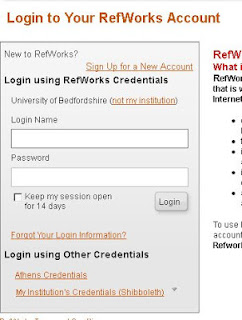

- Try logging out of your RefWorks account,. Go to the database and try the export again - you will have to log in to RefWorks again (use the My Institution's Credentials (Shibboleth) link).
- If that doesn't work, try finding the same article in DISCOVER, and exporting from there - you'll need to add the article to a Folder, and then click the folder icon on the top red bar, select your article and click Export.
- If all else fails, you can export the records as a file instead of a direct export - you can do this in either RIS or BibTex format. Save the file to your computer, log into RefWorks and choose References, then Import, choose whichever file format you used before in the Import Filter/Data Source drop-down menu, and choose your saved file to import.
Thursday, 17 January 2013
New RefWorks tutorials on YouTube - Write-N-Cite 4
Tuesday, 20 November 2012
RefWorks workshops at Polhill, 27th November & 4th December
There will be 2 'drop-in' workshops for RefWorks this term. The workshops will cover creating an account,
importing references from DISCOVER, the Library Catalogue and the web
and creating a bibliography. Also a chance to deal with any RefWorks
related questions you may have.
There's no need to book just turn up if you're interested. Dates and times are:
There's no need to book just turn up if you're interested. Dates and times are:
- Tuesday, 27th November. 1.00 - 2.00 in Polhill Library IT Training Suite 2
- Tuesday 4th December. 1.00 - 2.00 in Polhill Library IT Training Suite 2.
Subscribe to:
Posts (Atom)

 Posts
Posts

